Filament Rendering

Some of the Filament features: environment lighting, PBR materials and custom light sources (used for creating highlights).
Filament is a rendering engine that Cascadeur uses to visualize the scenes.
It is a modern, real-time engine that uses physics-based approach to rendering materials, as well as other effects.
Rendering Effects
The engine includes several effects that can be turned on and off to customize the look of the scene. They are available in the View part of the Visible/Selectable menu:
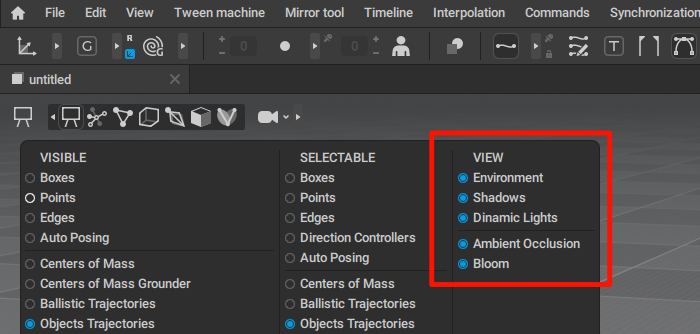
These effect are:
Environment
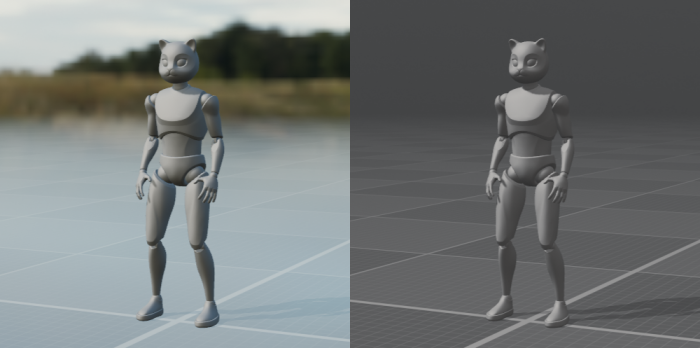
A scene with (left) and without (right) Environment.
This option enables and disables the background light source and the background image that also contributes to the lighting.
Environment can be adjusted with a set of parameters found on the Scene Settings panel, under the Environment tab:
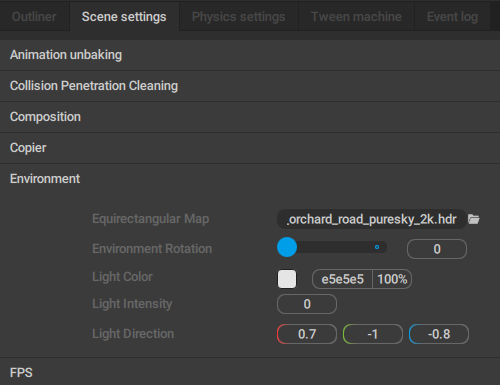
Equirectangular Map
Sets the texture (in .hdr format) to act as a background of the scene.
This texture also contributes to the lighting.
If this field is left empty, the default gray background is used.
Environment Rotation
Sets the rotation for the environment texture. Can be used to adjust its position, and with it, the look of the scene.
Light Color
Sets the color for the environment light: the ‘main’ light source in the scene.
Light Intensity
Sets the power for the environment light.
Light Direction
Sets the direction of the environment light.
Shadows
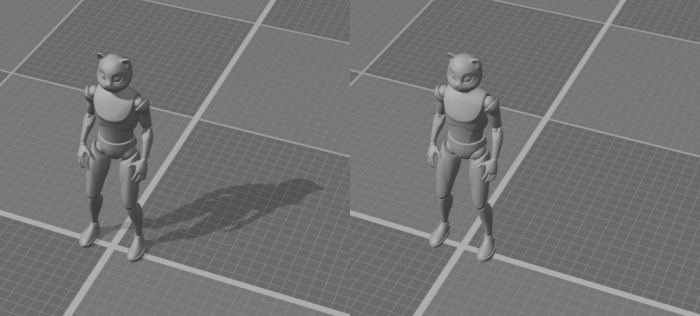
A scene with (left) and without (right) shadows.
This option enables and disables shadows in the scene.
It affects all shadows: those cast by the environment light, and those cast by custom light sources (if they are present).
Also, shadows are cast by every object in the scene.
Dynamic Lights
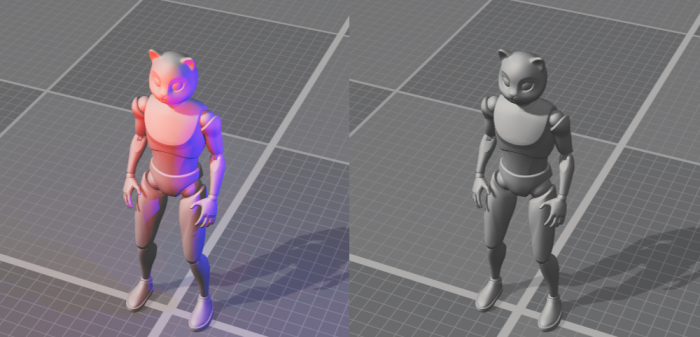
A scene with (left) and without (right) dynamic lights.
This option enables and disables the dynamic lights - i.e. the lights added by the user - in the scene.
It does not affect the Environment lighting.
Ambient Occlusion
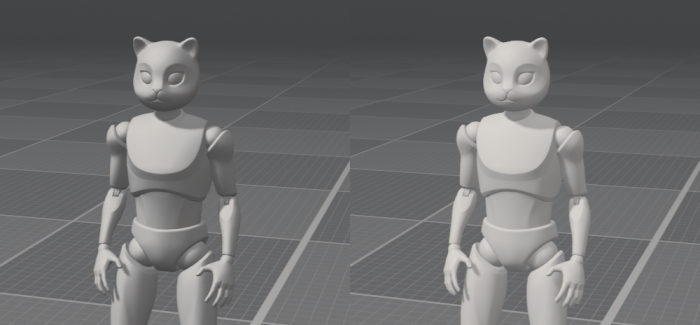
A scene with (left) and without (right Ambient Occlusion.
This option enables and disables the Ambient Occlusion: a self-shadowing effect that is often used to emphasize the volume of the 3d objects.
Note
The strength of the Ambient Occlusion effect can be adjusted manually for each Material.
This option only toggles the effect as a whole.
Bloom
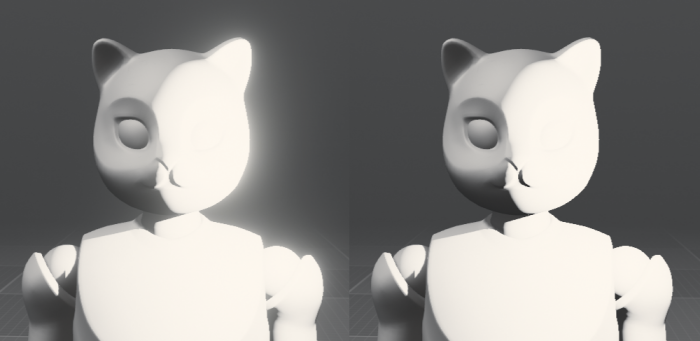
A scene with (left) and without (right) Bloom.
This option enables and disables Bloom: a post-processing effect that adds glowing to the bright parts of the image.
Lights
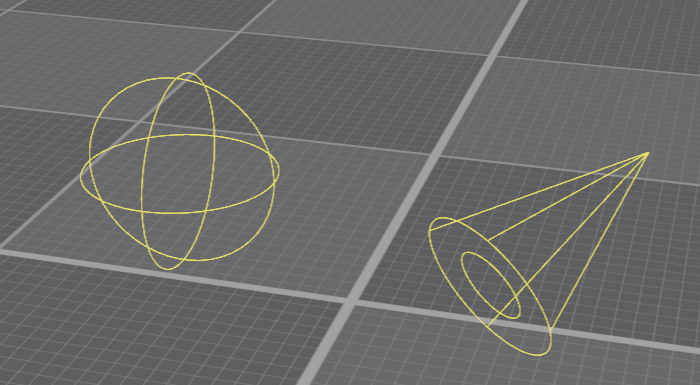
The types of light sources available in Cascadeur: a Point Light (left) and a Spot Light (right).
Aside from the Environment lighting, Filament allows you to add custom light sources to better light the scene or to give it a specific mood.
Note
By default, lights have no visual representation in the Viewport other than their contribution to the scene lighting.
To make them visible, enable the Light Geometry option in the Visible menu. This option is enabled on the image above.
Lights are creadted using the Add → Lights item in the Commands menu:

Once a light is created, it can be selected in the Outliner.
A selected light can be moved in the Viewpoert using Manipulators.
There are two types available: a point light and a spot light.
Point Light
A Point Light is a light source that emits light in all directions equally.
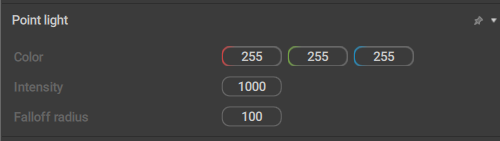
Color
The color of the light, represented as three color components: Red, Green and Blue.
Intensity
Sets the brightness of the light.
Falloff radius
Sets the maximum radius of the light’s influence (measured in Cascadeur units).
Spot Light
A Spot Light is a more complex light source that emits light in a cone-shaped area.
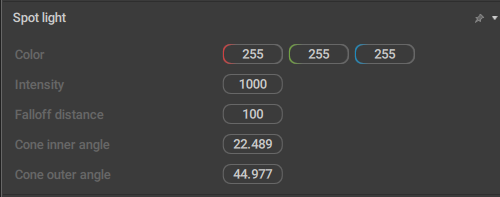
Color
The color of the light, represented as three color components: Red, Green and Blue.
Intensity
Sets the brightness of the light.
Falloff radius
Sets the maximum radius of the light’s influence (measured in Cascadeur units).
Cone inner angle
Angle of the ‘inner cone’ for the light - an area where the light is at its maximum intensity. In the image above, this area is shown as the smaller circle.Measured in degrees.
Cone outer angle
Angle of the ‘outer cone’ - an area where the light starts to weaken and eventually fade at the border of the area. In the same picture, it is shown as the cone.
Also measured in degrees.
Materials
Filament is also used to render Materials that are applied to 3D Meshes.
Unlike other options, this one is available in the Visible part of the menu:
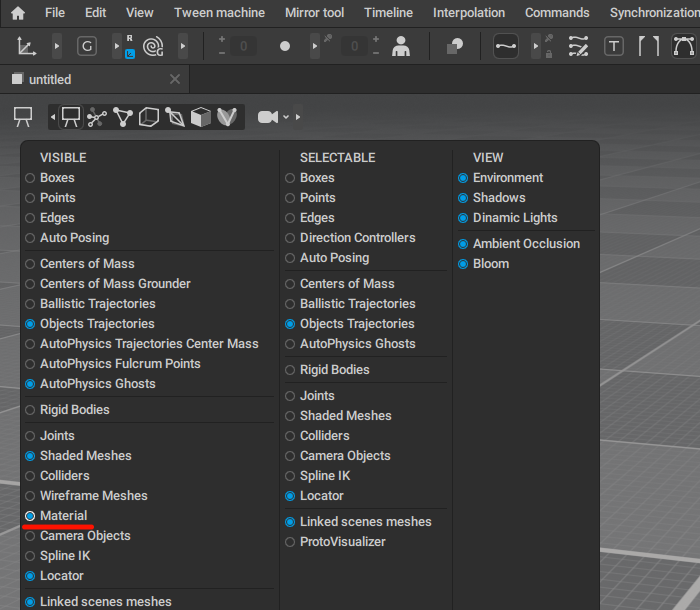
Materials are described in greater detail on the Meshes page.
Warning
Currently, Cascadeur cannot import materials from FBX or MTL files.
If you have a material you’d like to use in a scene, you’ll need to manually assign texture maps to the standard Cascadeur material.
Node-based materials are not supported either.
Nor are the UDIM textures.