Export GLB/GLTF
- Home
- Getting Started
- Export GLB/GLTF
This page describes how to export Cascadeur scenes to GLB/GLTF files.
For other supported formats see:
To save a scene to a GLTF file:
1. Select Export Glb/Gltf from the File → Export menu:

2. You’ll see this dialog:
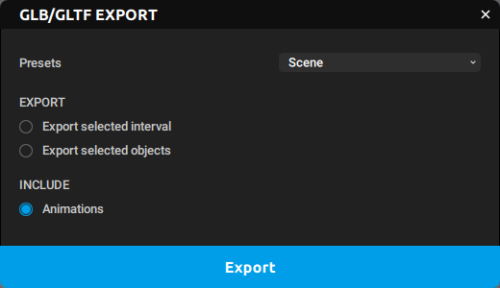
3. There, you'll need to set up the parameters, which are:
Presets
Here, you can select one of the predefined setting schemes, each one optimized for a particular task.
Available options are:
Animation is for exporting animation data without models or auxiliary objects.
Model is for exporting only the 3d meshes without animation attached to them.
Scene exports the entire Casacdeur scene.
Scene from selected objects is like the previous one, but only take into account the currently selected objects.
EXPORT
This section contains settings that define what parts of the model should be exported.
Export selected intervals
If this option is enabled, only animation data from the currently selected frames is exported; animation from other frames is ignored.
Disabled by default.
Export selected objects
If this option is enabled, only the currently selected objects are exported; the rest of the scene is ignored.
Also disabled by default.
INCLUDE
These options define what should be included in the exported file.
Animations
If this option is enabled, animation data is included in the exported scene.
Enabled by default.
4. Click Export and set a name and a path for the file.
5. After this, the content of the scene should be saved to this file.
And this is how Cascadeur scenes can be save to GLTF format.