Collision Penetration Cleaning
- Home
- Tools
- Physics Tools
- Collision Penetration Cleaning

A scene with a self-colliding character before and after applying Collision Penetration Cleaning.
Collision Penetration Cleaning analyzes an animation and removes intersections.
It works by determining the frame where the collision is deepest and fixing this collision on the entire selected interval (the strength of the effect depends on the distance from this ‘central’ frame - the farther a frame is, the less are the changes) - after which the animation is additionally blended to make the motion more smooth.
Note
For outdated scenes, you’ll need to re-generate the character rig. Otherwise, this tool won’t work.
To use it:
1. Select the Point Controllers associated with the body parts that display intersections.
2. Go to the Object Properties panel.
3. There, find the Collision Penetration Cleaning group of settings:

4. Adjust the Muscle stiffness parameter.
By default, it is set to 100, which means there will be no changes.
Decreasing the value leads to more noticeable changes.
5. Select an interval on the Timeline.
6. Click the button on the Toolbar:

After this, the tool will analyze the animation and remove any penetrations it finds.
Settings
The effect of the tool can be configured using two sets of parameters.
The first one is available on the Scene Settings panel; it is called Collision Penetration Cleaning:

Clean Floor Collisions
If this is enabled, the algorithm would take into account collisions with the ‘floor’ (ground level).
Otherwise, such collisions will be ignored.
Clear Kinematic Collisions
If this is enabled, the algorithm would take into account collisions with objects that have colliders but no Rigid Bodies.
Clear Dynamic Collisions
If this is enabled, the algorithm would take into account collisions with objects that have Rigid Bodies (including parts of the character) with colliders attached to them.
Penetration Offset
A value that sets a ‘threshold’ for the algorithm to recognize collisions.
If the algorithm fails to recognize a collision, adjusting this parameter might help.
Another set of parameters is available in the Settings Window:
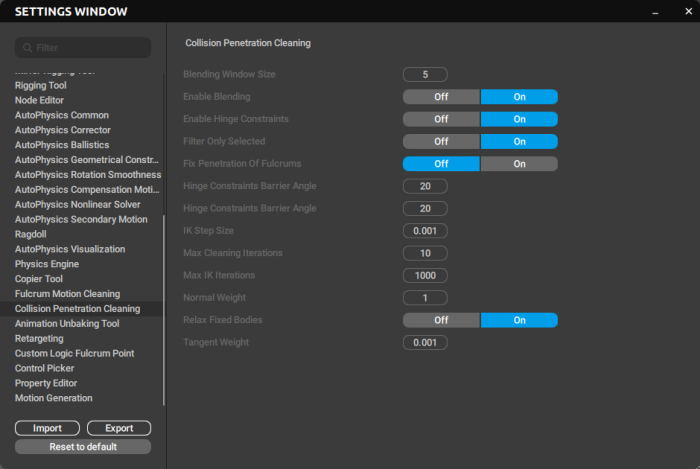
Blending Window Size
Sets the number of frames to blend the ‘cleaned’ collision with the surrounding frames.
Blending is performed using Bezier interpolation.
Measured in frames, the default value is 5.
Enable Blending
If this is enabled, ‘cleaned’ collision frames are blended with surrounding frames to create a smooth motion.
Otherwise, the cleaned frames are left as they are.
Enabled by default.
Enable Hinge Constraints
If this is enabled, the hinge constraints would be applied to the character’s knees, preventing them from bending backwards - which sometimes happen when the algorithm removes penetrations.
Also enabled by default.
Filter Only Selected
If this is enabled, the algorithm will only be applied to the currently selected frames.
Otherwise, it’ll be applied to the whole animation.
Enabled by default.
Hinge Constraints Barrier Angle
Sets a limiting angle for the hinge constraint. If the angle is less than this limit, the constraint is applied; otherwise, it is not.
Hinge Constraints Barrier Strength
Controls the strength of the hinge constraint.
Increasing this value amplifies the effect of the constraint.
IK Step Size
Sets the ‘step’ size (the minimum distance an object could be moved) for the IK filter that is used as a part of the cleaning algorithm.
Max Cleaning Iterations
Sets the number of times the algorithm will be applied to the animation.
Increasing the number might lead to better results, but also to longer
The default value is 10.
Max IK Iterations
Sets the number of iterations for the IK filter.
The default value is 1000.
Normal Weight
Sets the ‘weight’ for the IK filter to move objects along the normal vector.
Relax Fixed Bodies
If this is enabled, the algorithm applies a relaxation pass (link to the page about relaxation) to the rig elements that are fixed (link to fixing). Otherwise, the pass is only applied to non-fixed elements.
Enabled by default.
Tangent Weight
Same as above, but for the tangent vector.
Min Penetration Depth
Sets the minimum depth for collisions. If the collision’s depth is less than this value, it is ignored.
Also, the strength of the Collision Penetration effect can be set individually for every Point Controller using the Muscle Stiffness parameter mentioned above (found in the Collision Penetration cleaning group of settings).