Fulcrum Points
- Home
- Tools
- Physics Tools
- Fulcrum Points

A character with Fulcrum Points enabled (shown as green circles).
Fulcrum points represent parts of the character that contact an obstacle (such as the gound, a colision object or another character).
These points play are used in many tools in Cascadeur:
Fulcrum Points in the Viewport
By default, Fulcrum Points are not visible in the scene.
To enable them, click the Show All Fulcrum Points button on the Toolbar:

In the Viewport, a Fulcrum Points is visualized as a dot with a border around it:

The color of the border indicates the type of the Fulcrum Point:
Green color means this is a regular Fulcrum Point.
Blue color means the contact point.
The shape of the border also has a meaning:
A circle means the point uses a Surface collision type
A square means the Pin collision is used.
See the Physics Corrector page to learn about the difference between these collision types.
When a Fulcrum Point intersects with a collider, a line is drawn between it and the collider’s surface.
If there are multiple collisions, the line is drawn to the nearest one.
See also Interaction with Environment to learn more about colliders, their types and how to work with them.
Overview
The algorithm recognizes Point Controllers as Fulcrum Points based on two conditions:
1. The point should be close enough to the ground level.
2. Between the frames, the Point should not move - or only move by a minimum distance.
When these conditions are met, the Point Controller is considered a Fulcrum Point.
If an interval has at least one fulcrum point, the character is considered to be standing on the ground.
The Point Controllers that are recognized as Fulcrum points are marked with a green borders for the character model (but not for the Physics Assistant):
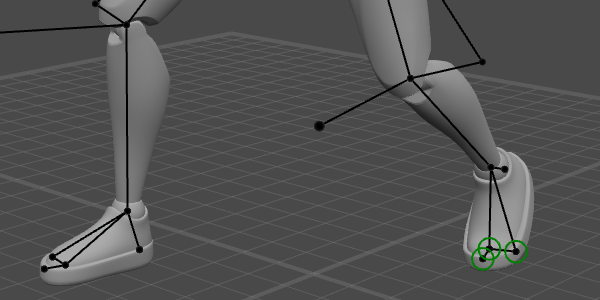
This happens automatically and does not require any user input.
There are, however, options for customization.
Settings
You can control Fulcrum Points by selecting Point Controllers they are associated with, and adjusting parameters found on the Object Properties panel, under the Fulcrum Point tab:

These parameters are:
Fulcrum State
Controls when the Point Controller is considered a Fulcrum Point.
Fulcrum means the controller is considered a fulcrum point when the conditions are met. This is the default value.
Enforce means the controller is always considered a fulcrum point, even when the conditions are not met.
NotFulcrum means the controller is never considered a fulcrum point.
This setting is applied to the current Keyframe and the interpolation interval after it.
If there are two Keyframes in a row, Fulcrum State is applied to the current Keyframe and that next Keyframe. This makes possible setting different states for the keys, such as Enforce on the first and NonFulcrum on the second (this particular setup would make Fulcrum Points visible on the first key and invisible on the second).
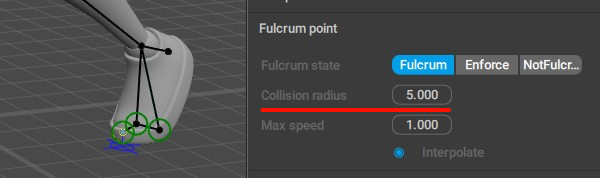
Collision radius
Defines how close the Point should be to a collider. If the distance does not exceed this value, the Point is considered a fulcrum.

Max speed
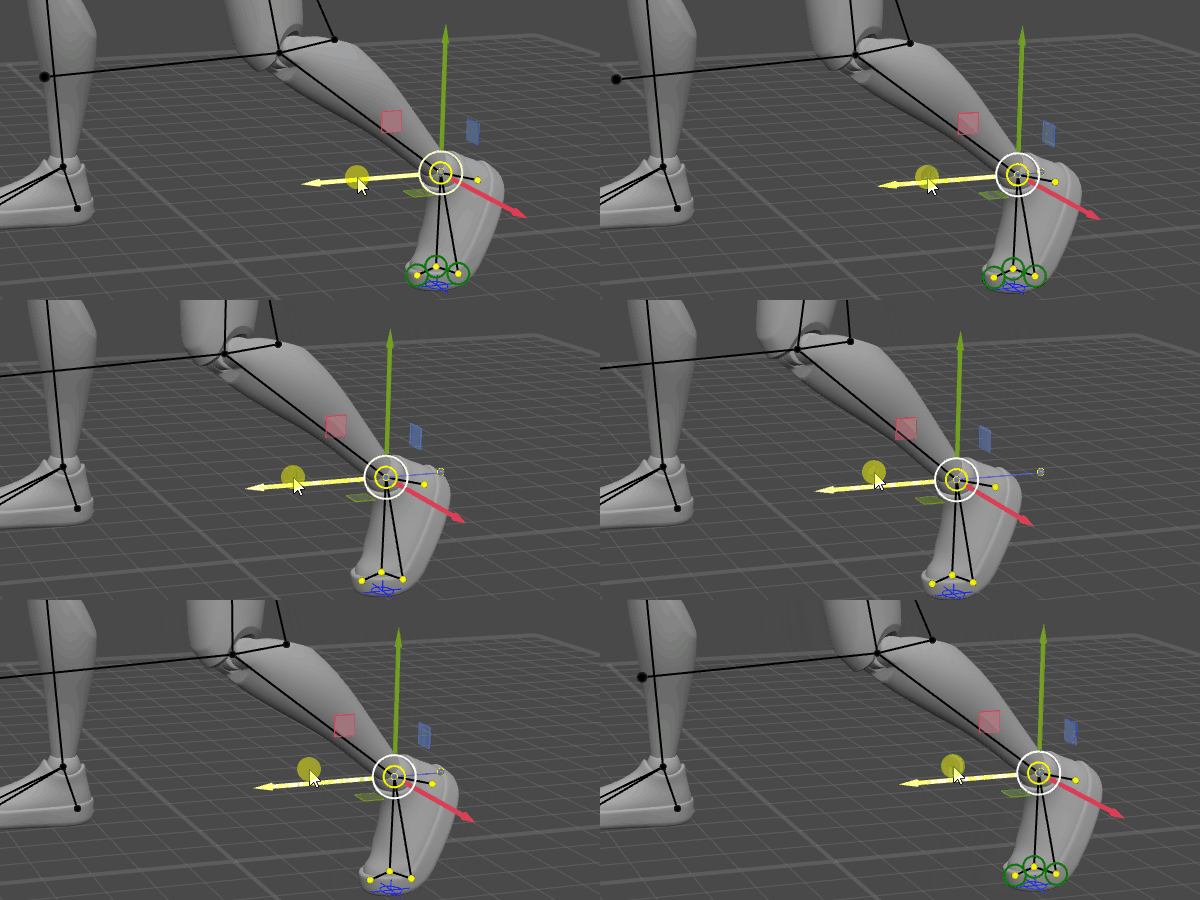
Sets the limit for the distance the point could travel to be recognized as a fulcrum.
If the point does not move to a distance greater than this value multiplied by the number of frames between the keyframes, it is recognized as a fulcrum on this interval:
These settings control the basic parameters.
For more in-depth adjustments, there is another group of parameters: Custom Logic Fulcrum Point in the Settings Window.
It is described here.
Manual Mode
You can also work with Fulcrum Points manually.
For this:
1. Go to the Settings Window.
2. Open the Custom Logic Fulcrum Point tab.
3. There, set the Is Custom Logic Fulcrum Point parameter to Off:

This will disable all of the additional settings (available on the same tab), and the algorithm would only use the basic parameters for recognizing Fulcrum Points.
This approach is more limited, but can be useful in specific cases where the default method fails to produce results you need.
Examples of Using Fulcrum Points
Manipulating Fulcrum Points can greatly affect the behavior of the AutoPhysics simulation.
For example, the simulation can make the character jump when you’re trying to make a squat:
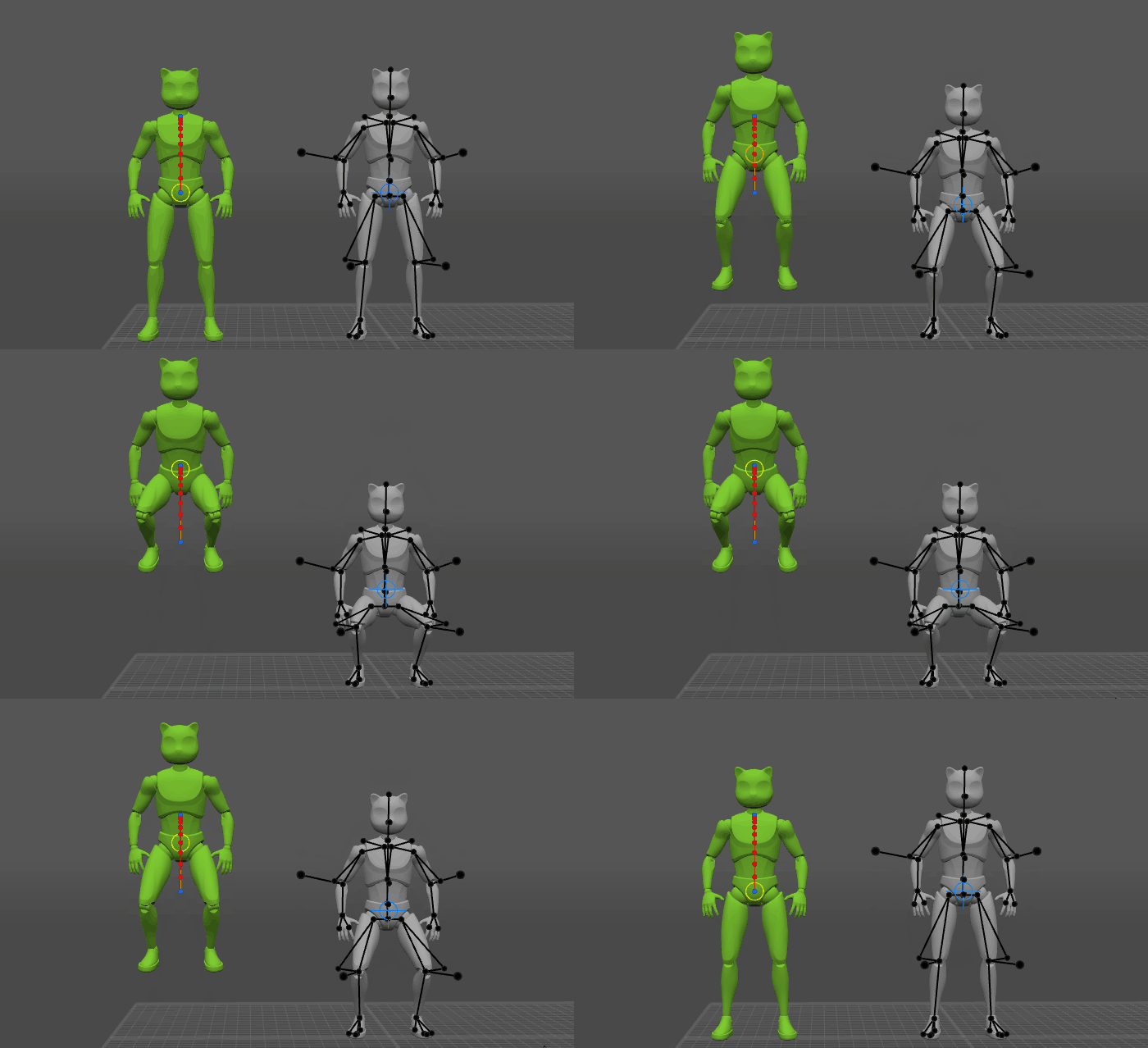
Why does this happen?
If you look closely at the character’s legs, you’ll notice that they slide on the ground, moving backward:
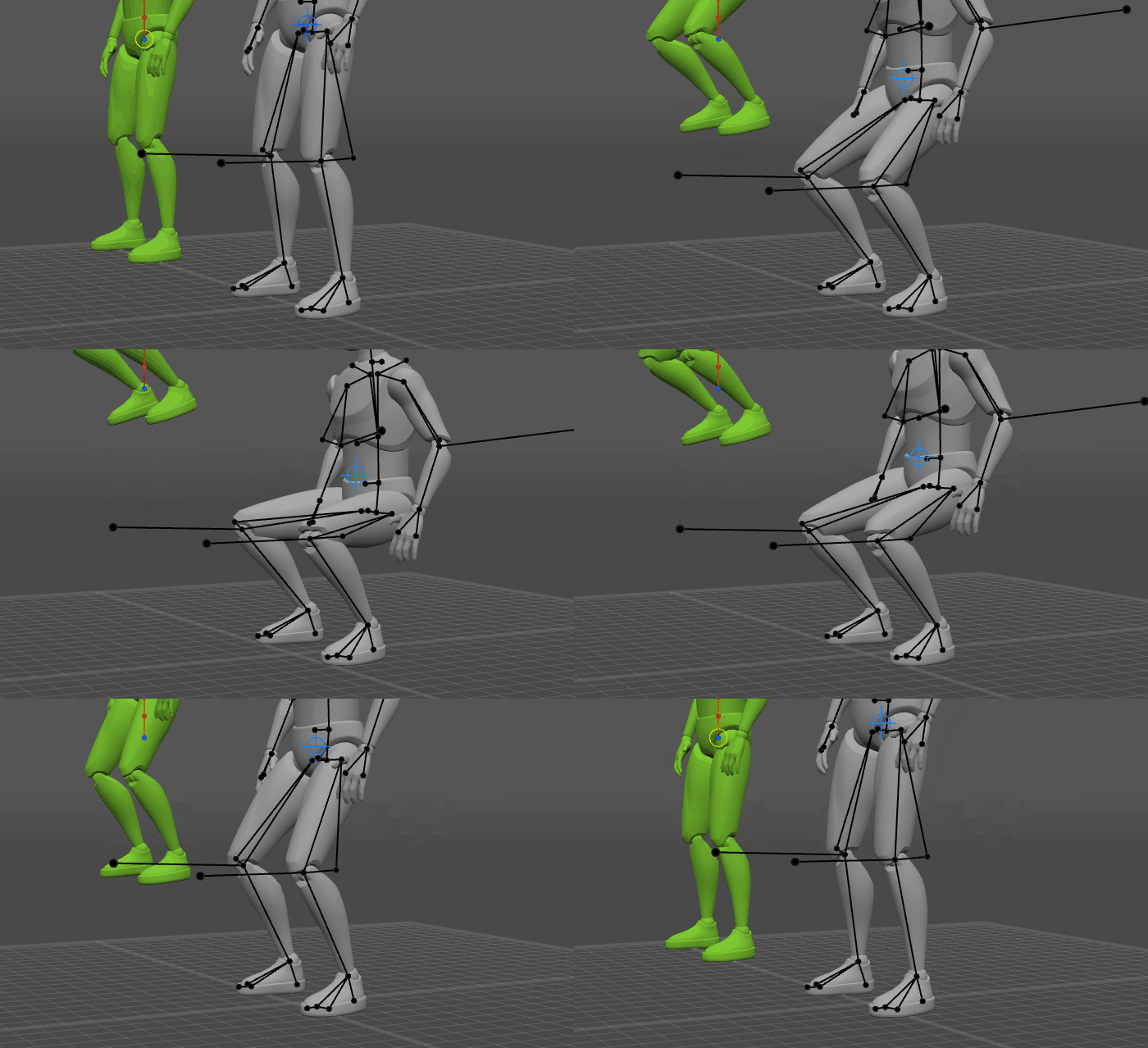
Because of this, the AutoPhysics tool does not recognize them as fulcrum points.
And where there’s no fulcrum points, there’s only one kind of motion possible: ballistic motion, i.e., jumping.
But if we copy the feet positions from the frame 0 to the whole interval, they won’t move anymore, and a fulcrum area will appear:
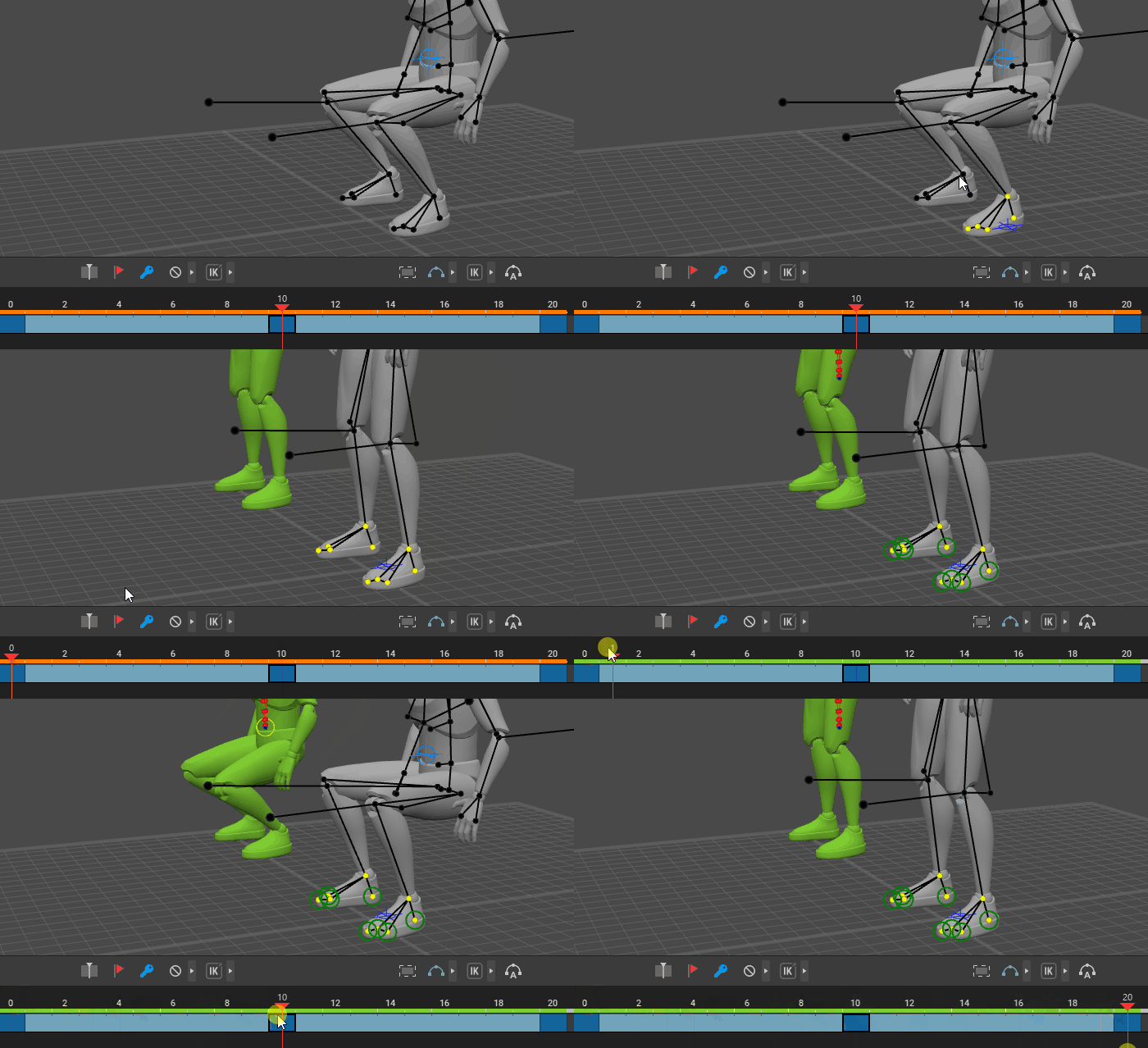
As you can see, squats work correctly when there are fulcrum points.
So when you’d like to apply AutoPhysics to your animation, make sure that the animation has some fulcrum points.
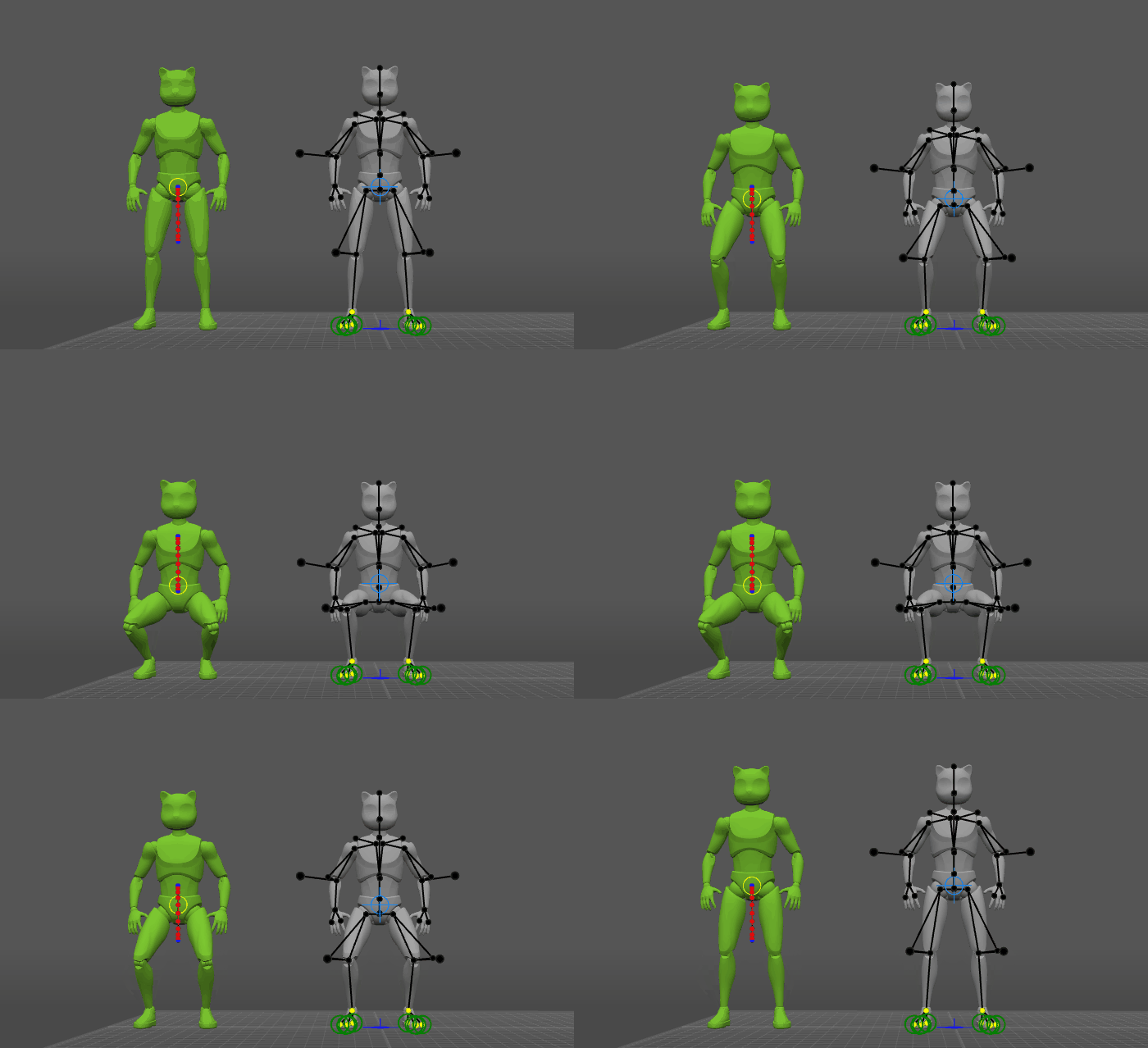
And this is exactly why in most cases, AutoPhysics cannot work with stay-in-place animation.

Common Issues
Multiple Fulcrum Points
Having a big number of Fulcrum Points in a scene may cause issues.
Oftentimes, these issues can be fixed by decreasing the number of fulcrum points.
To do this:
1. Select a Point Controller that you don’t want to act as a fulcrum point.
2. Go to the Object Properties panel.
3. Open the Fulcrum point tab.
4. Set it to Not Fulcrum:

5. Repeat for every fulcrum point you’d like to disable.
Fulcrum Points not Getting Detected
Sometimes, you might run into the issue of Fulcrum Points not being recognized when they should.
There might be several way to address this problem:
1. Check collision objects.
They should be there (by default mesh objects don’t have collisions; so you’ll need to add them).
They should roughly coincide with the 3D meshes they are attached to. If they are not, this might be the cause of Fulcrum Points not getting detected when the character touches - or intersects with - an object.
2. Check Point Controllers.
Make sure the Fulcrum state parameter is not set to NotFulcrum.
Try adjusting the Collision radius parameter. Increasing it might make the collision easier to recognize.
If you are using the manual approach:
If the Point is moving, try adjusting the Max speed parameter. If the value is too low for the algorithm to recognize a fulcrum, increasing it could help.
If you are using the automated (default) approach:
Try to decrease the Activation Threshold value (by default it is 0.01, for more precise detection set it to 0.001)