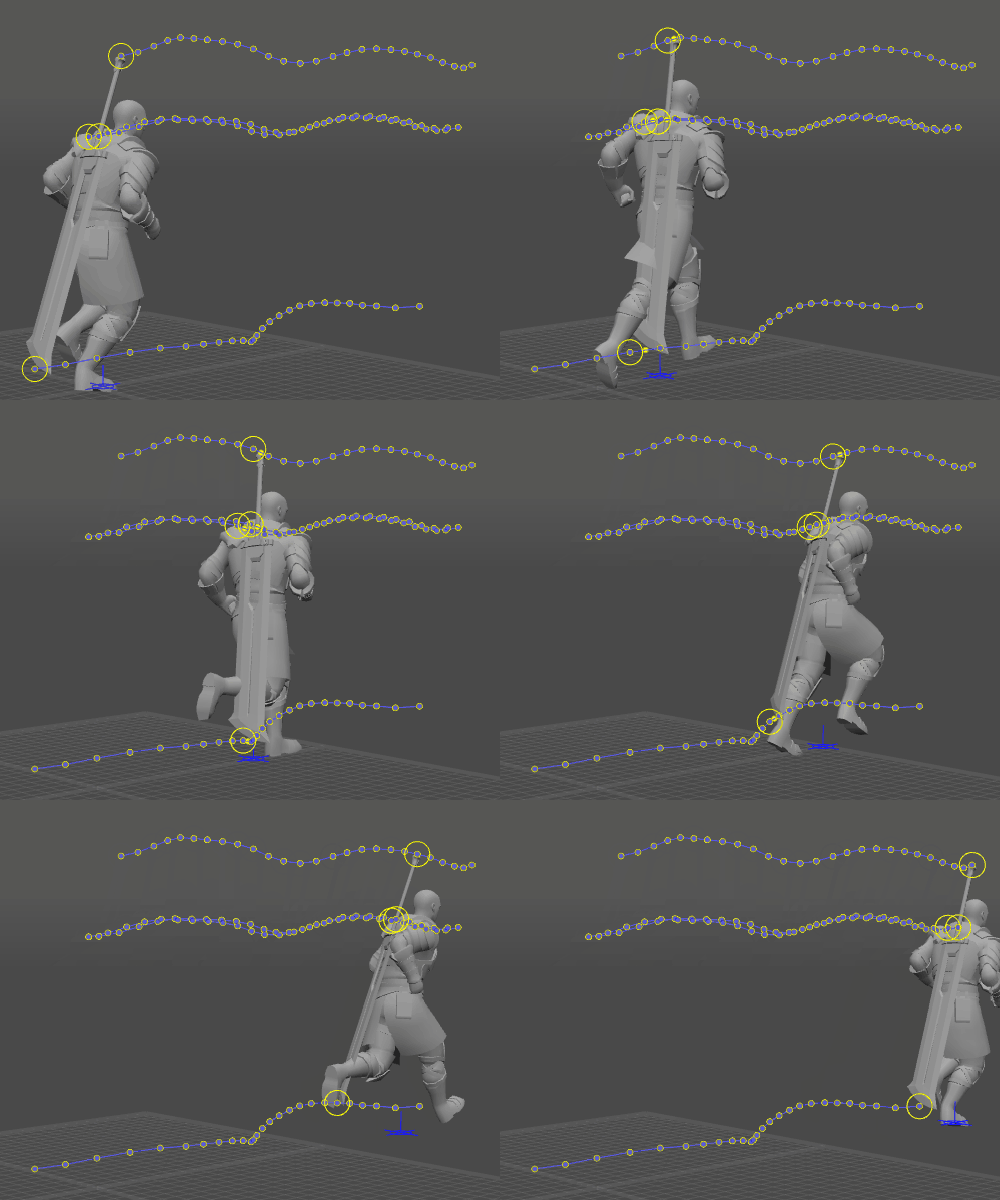
Attaching Objects
- Home
- Animation Pipeline
- Tips and How-To's
- Attaching Objects
Sometimes, you might need to add secondary objects to you character.
There are several ways this can be done.
Using Coinstraints
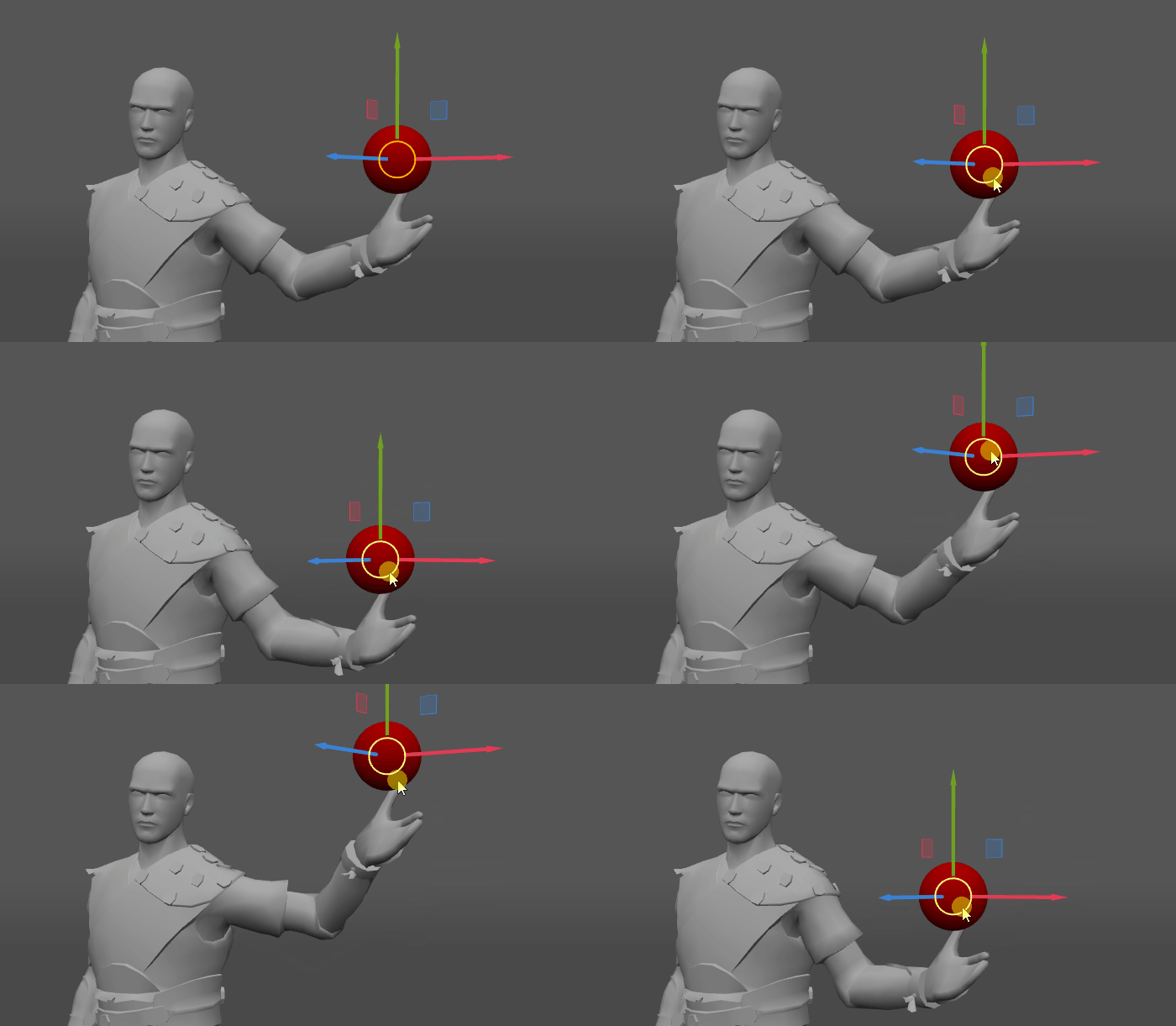
The most common -and most versatile - method of attaching objects to characters is with Constraints.
Constraints can be used for a variety of tasks, including getting an object folow a character's body part.
There are several types of Constraints; for this task, you should use Constrain Transform with the object acting as a 'target' and a Joint or a Mesh acting as a 'parent'.
Objects as Rig Parts
Another way of attaching objects is integrating them directly into the character rig.
This approach is used when the object has a significant mass and thus should influence the way the character moves.
This is a pretty complex topic, so the manual has an entire section dedicated to it.
Copying Positions
Finally, if the object is rigged, you can make it follow the character simply by copying the position of the character's body part.
This can be done by:
1. Switching to the Local mode:

2. Enabling the Relative to pivot mode button:

3. Selecting every point controller in the object
4. Setting the pivot point.
To do this, right-click a point controller:
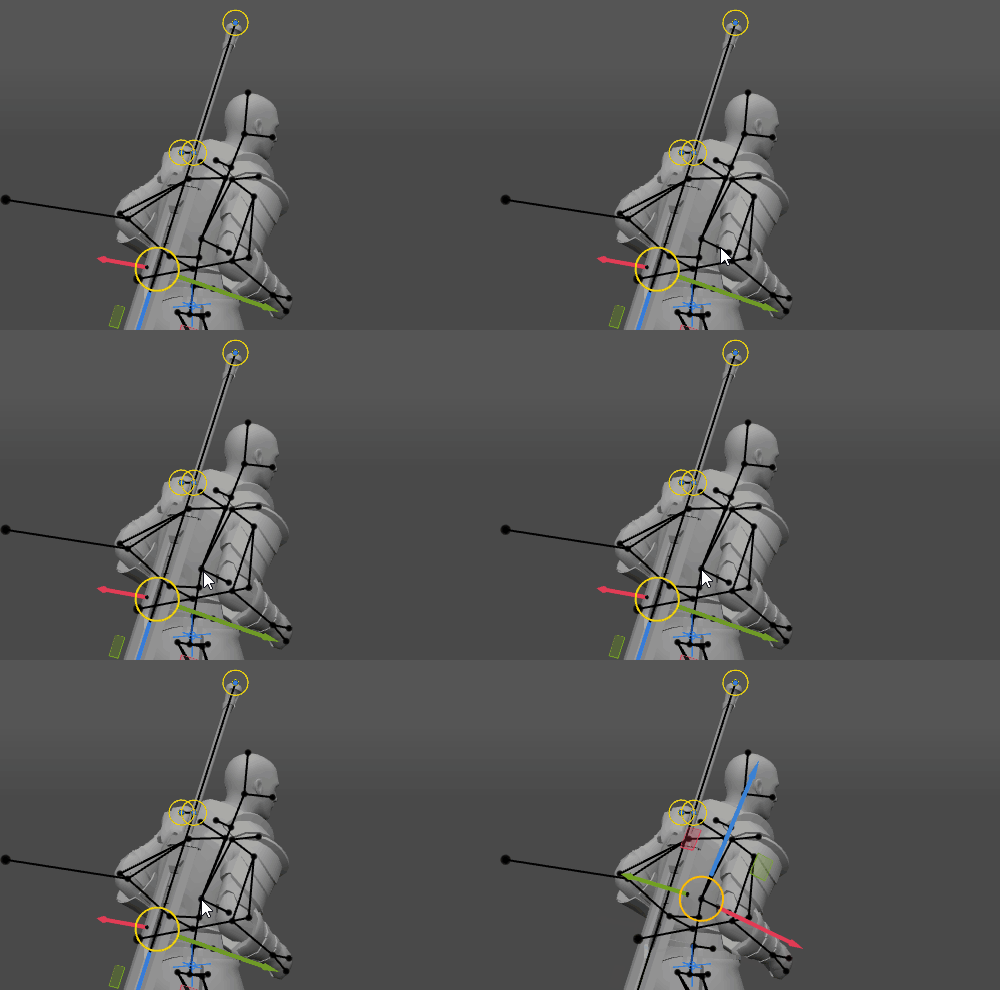
It is important to select an appropriate pivot for the operation to be successful.
5. Copying the positions of the controllers (Ctrl + C)
6. Selecting an interval on the Timeline (the object would follow the character on this interval).
7. Using Paste into interval from the Edit menu (Ctrl + Alt + V)