Kinematics in Cascadeur
- Home
- Animation Pipeline
- Spline
- Kinematics in Cascadeur
Kinematics in animation define how motion is transferred between rig elements.
Cascadeur supports several types of kinematics that can be selected on the Timeline.
Cascadeur rig is 'universal' in that it supports all type of kinematics at once (unlike most 3D programs, where you need separate sets of controllers for different types).
You can also switch between them on the fly, which can be used in animation.
There are two switches to change the type of kinematics.
At the cenetr of the Timeline, there is a switch for setting kinematics on Interpolation Intervals:

While at the left side, there is a switch for setting kinematics on Keyframes:

Both work the same way:
1. Select a frame (either a key, or a part of an interval).
2. Select the type of kinematics for it.
Types of Kinematics
There are three types of kinematics in Cascadeur.
Inverse Kinematics (IK)
When this type is used, the influence is transferred from bottom to top. Positions and spatial orientations of the parent segments are calculated on the basis of the positions and orientations of their children.
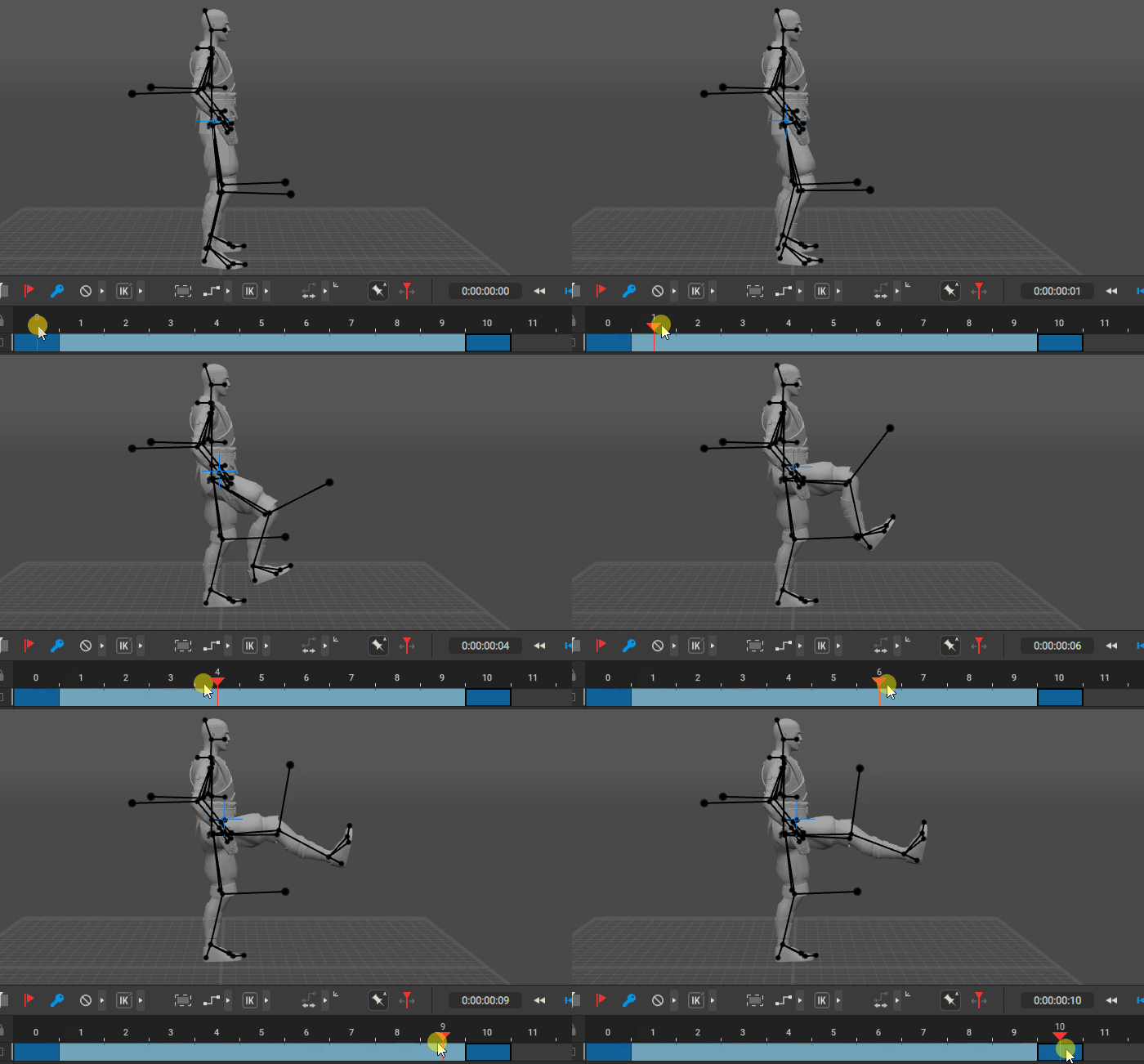
An example of IK interpolation.
In Cascadeur, this is the default type of kinematics. Every interval or key uses it unless manually set to a different type.
Forward Kinematics (FK)
This type transfers the influence from the top of the hierarchical chain to the bottom. Any change in the position of a parent segment affects the positions of every child segment in the hierarchy.
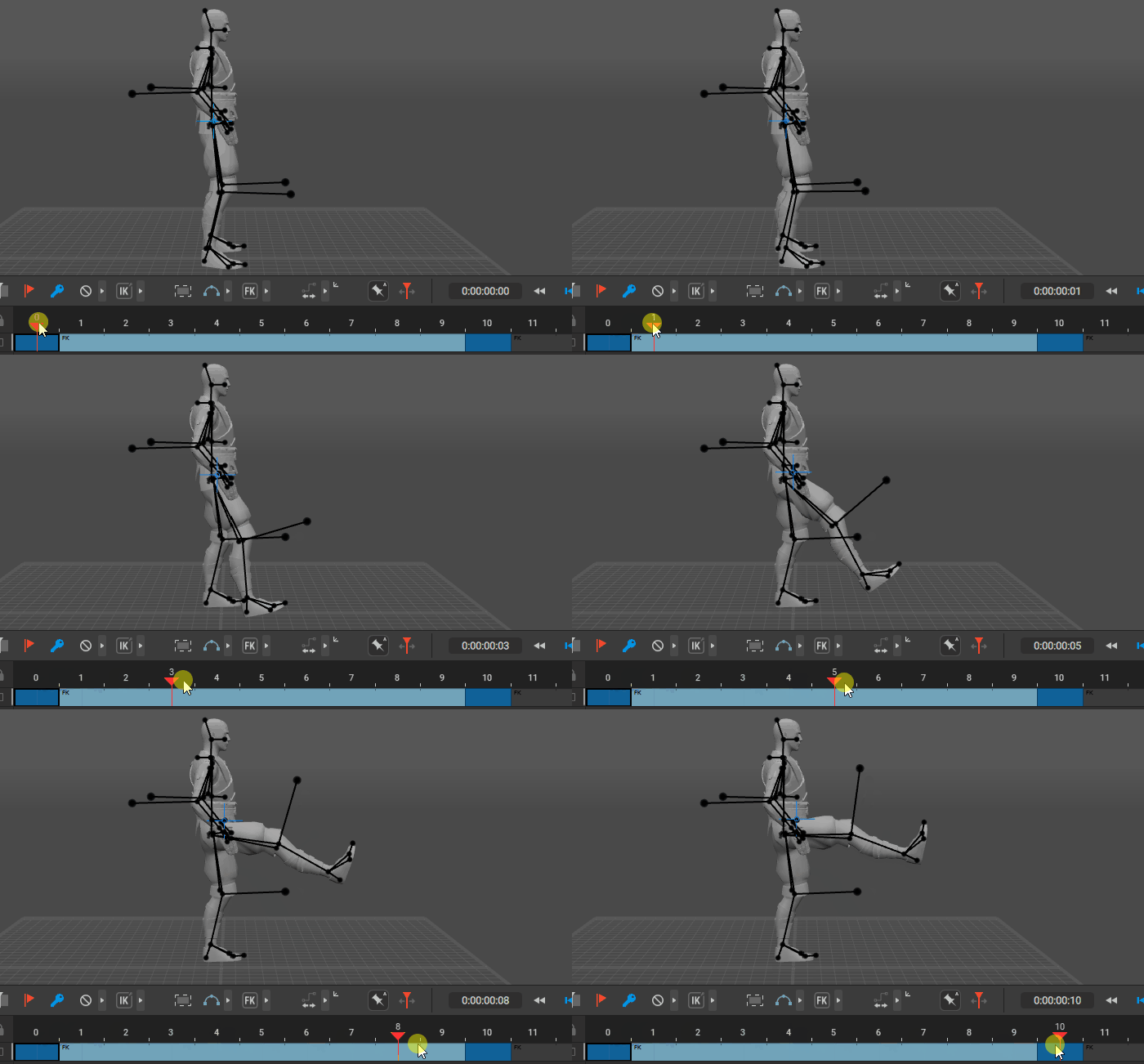
An example of FK kinematics.
Keys and intervals with this type are marked with FK letters on the Timeline (as the example above shows).
Global Rotation (GR)
This type of kinematics is similar to Forward, but produces arch-like interpolation for limbs - arms and legs of a humanoid character, paws of a quadruped etc. Unlike the regular Forward Kinematics, this interpolation does not inherit rotation from parent objects (like clavicles for the arms).
This can be useful for cases when you need to adjust the character’s body without affecting the limbs’ movements.

Forward Kinematics (Left) and Global Forward (Right). Note how differently similar adjustments affect the trajectory between these two settings.
Note
The example above uses Rotation Trajectories to exemplify the difference. With other types of trajectories this difference may be less notable.
What type of kinematics to use depends on what kind of animation you’re creating. FK is perfect for rotational movements, while IK is a better choice for cases where your character interacts with surfaces (walking, running, going up a ladder etc.).
Cascadeur gives you an option to use both types of kinematics, as well as switch between them at any moment.
Note
By default, physics simulations (and, subsequently, Physics Tools) don’t work with Forward Kinematics.
This is done so AutoPosing would work correctly.
Changing Kinematics
To change the type of kinematics on an interval:
1. Select an interval on the Timeline.
2. Select the type of kinematics from the menu (the one at the right of the Interpolation menu) on the Timeline or press Alt + ,.
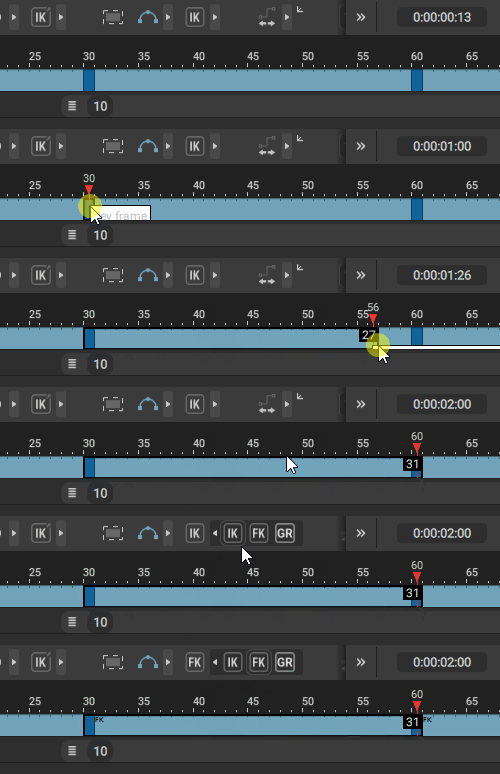
You can also change the type of kinematics of a single keyframe. To do this:
1. Select a keyframe
2. Select the type of kinematics from the menu (the one at the left of the Label button) or press Shift + F.
An IK keyframe will fix positions of the corresponding rig elements in the global coordinates, while an FK keyframe will use local coordinates in relation to the parent element without affecting the parent itself.
Kinematics and Cascadeur Rig
In the Cascadeur rig system, the position and orientation of a joint is controlled by several points. The additional and direction points define the orientation, while the main point sets the general position.
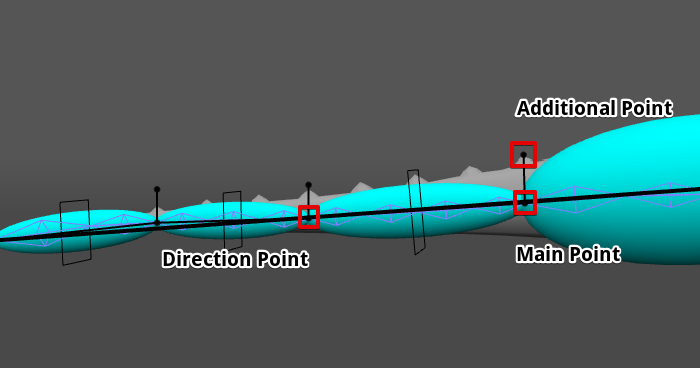
To learn more about point types, see Point Controllers.
When the main point does not coincide with the direction point of the parent bone, its spatial orientation is still directly linked to the orientation of its parent. Because of this, it should be interpolated in accordance with the additional and direction points of its parent.
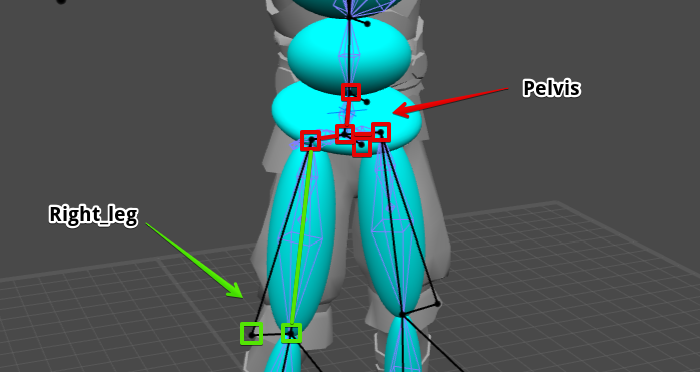
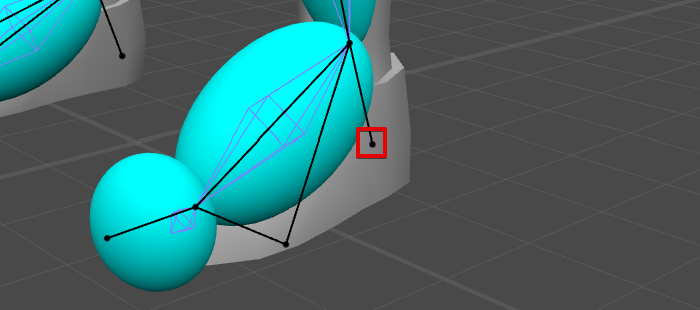
As for additional points that can be created with the Add point controller button on the Rigging Tool window, they always use FK in relation to the corresponding joint. Trying to set a different kinematics type for such points will not produce any effect.
Kinematics and Inbetweening
Forward Kinematics sets poses relative to the parent objects. A character’s arm, for example, is positioned in relation to the chest (instead of just using an absolute position in the scene).
So when you animate parent objects, the child’s animation will remain the same - only it would follow the parent. With IK, it’s the other way around.
This can be used to combine hand-made animation with Inbetweening.
Set manually animated parts to FK (for this, they should be on separate Animation Tracks) and create the rest of the motion with Inbetweening.
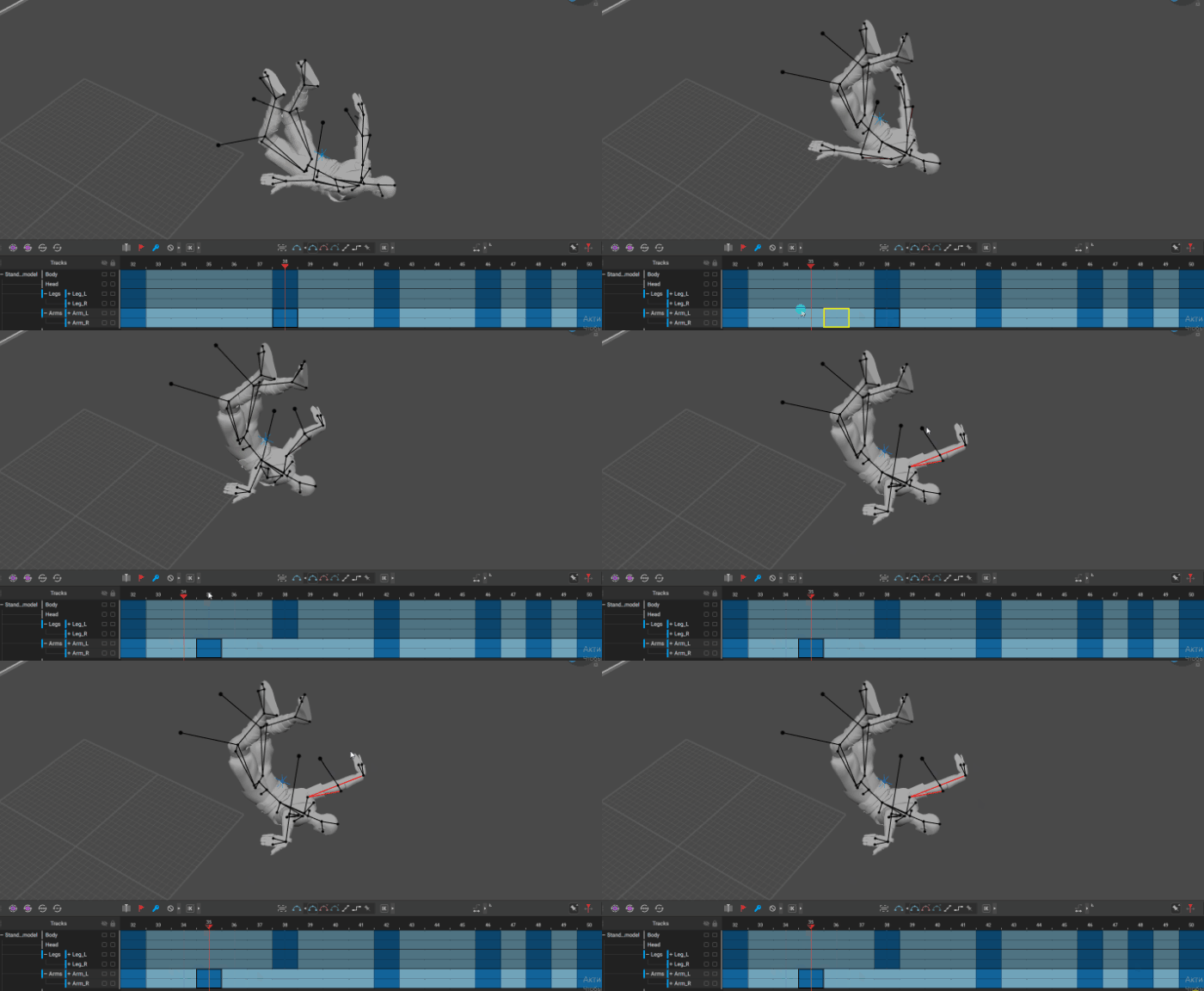
The end result would be something like this:

An example of using Forward Kinematics in combination with Inbetweening.
Here, the character’s arm is animated manually and set to FK, while the rest of the motion is produced by Inbetweening.
As you can see, it is surprisingly seamless, even when the character moves through the scene.
With IK, the effect won't be the same: as Inbetweening would affect the parent objects of the manually animated parts, it would lead to distortions in animation.