
More than 140 animations, one solo developer, and everything I learned animating them in Cascadeur
By Bilal Urwani (FutureCake), founder of Outface Games
Two full days. That’s how long my first attack animation for this project took. By the end, a new attack took me about two hours, including the setup in Unreal Engine. In this article, I’ll show you how I got there while making more than 140 animations in Cascadeur as a solo developer.
Hi, I’m Bilal, also known as FutureCake, a solo developer based in Germany and founder of Outface Games. I’ve been working with Unreal Engine 5 for about four years, building systems and templates for other game developers on Fab as well as creating custom variations of those and complete systems and services for clients.
My latest project is the OG Realistic Combat System, a directional melee combat framework for Unreal Engine 5. Not a Souls-like, not a hack-and-slash, but grounded, readable combat in the spirit of Chivalry 2, Mount & Blade II: Bannerlord and Mordhau, where fights are decided by timing, feints and positioning instead of spamming the left mouse button. Directional attacks, blocks, parries, kicks, dodges and thrown weapons, playable in first and third person. And every single animation in it was made in Cascadeur.
Why Cascadeur? I had very little character animation experience before this project and always used Blender. For this system, however, I knew I needed to look for a better tool to speed up my workflow if development shouldn’t take forever. I had known about Cascadeur for a while and had been following its development, although I hadn’t tried it, simply because I hadn’t needed it at the time. All the tools that it offers, which we will be looking at later in the article, and the fact that it was compatible with the Unreal Engine 5 mannequin from the start were a clear signal for me to give it a chance. Looking back, I am glad I tried it out with this project because it made creating good animations, without exaggeration, actually easy.
Every animation you see here was made in Cascadeur.
We’ll go through the whole journey: how planning cut down my animation list, the keyframing workflow that finally clicked, the Cascadeur tools I relied on, how the animations are layered in Unreal Engine, and the camera trick that let me use one animation set for both first and third person. Spoiler: the hardest part wasn’t the attacks.
Plan before you animate
Let’s start with the most valuable lesson, because it saves the most time: write down every single animation before you even open Cascadeur.
At the start, it’s easy to think: six weapon types, five attacks each, plus blocks, dodges, locomotion… that’s hundreds of animations. But once you actually write everything down, you start to see what can be shared. Maybe you thought you needed 100 animations, and it turns out you only need 50.
In my case, the biggest win was this: all one-handed weapons share the same animations. Whether it’s a sword, an axe or a mace doesn’t matter for the motion. So I didn’t animate per weapon, but per use case. One-handed weapons, shields, two-handed swords, two-handed axes, spears and unarmed combat each got their own set, and only where it made sense. A spear, for example, only has overhead, stab and special attacks, because left and right swings simply don’t make sense with it. Maybe your needs require separate animations for each weapon, which is totally fine. Just make sure not to create more work for yourself than you actually need to, especially if you have a tight schedule.
I kept everything in an animation tracker: a spreadsheet broken down by category and use case, with a checkbox for every animation. Yes, a spreadsheet. Not the most exciting part of game development, but it was my map for two to three months of animation work, which was roughly 40 to 50 percent of the total development time.
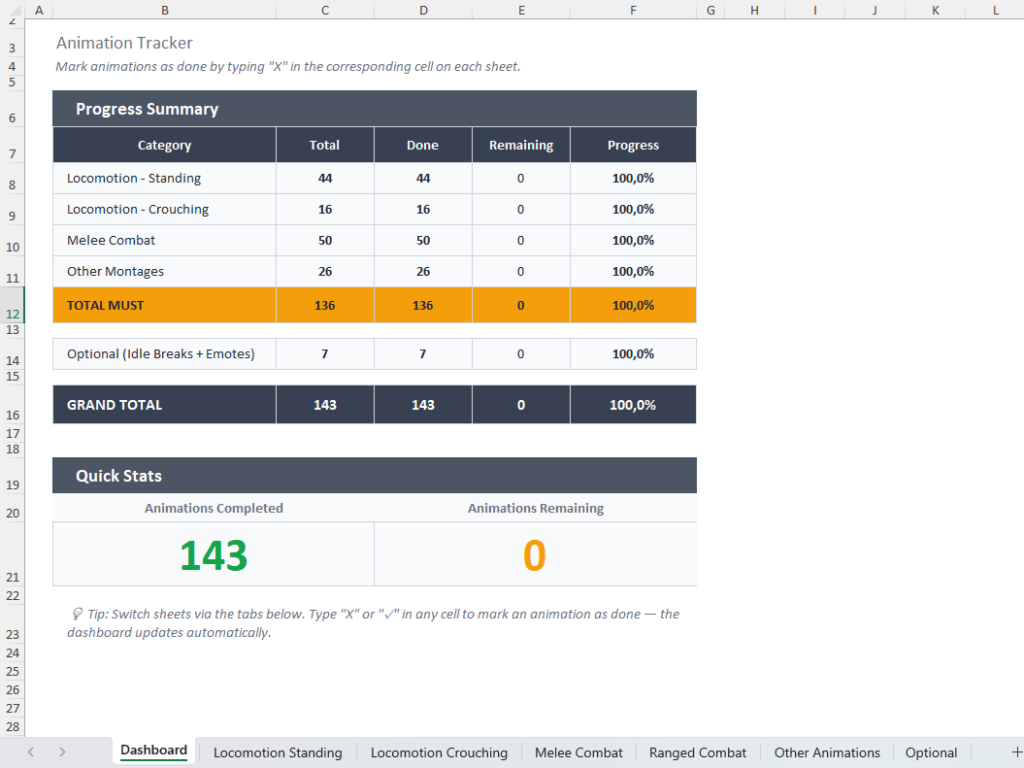
My animation tracker: every animation per use case, not per weapon.
Planning also means setting a few rules early. These three shaped everything for my system:
- Every attack starts and ends in the stance of its weapon. All other animations start from the idle pose. That’s what makes everything connect later: attacks can chain into each other, and transitions into blocking or walking stay clean.
- One animation set for first and third person. The first-person camera sits at the character’s head (true first person), so the same animation has to look good from the inside and from the outside. Only the weapon stances have separate first- and third-person versions. More on how I made that work in the camera section below.
- Everything works with both hands. Every one-handed weapon, every shield and every fist attack exists for the right and the left hand, and so do picking up, equipping, holstering and throwing. Shields can be carried in either hand, and since characters can lose an arm in combat, a character with only a left arm has to be fully playable too.
Tip: Check whether you can group your animations by use case, not by item. If two weapons move the same way, they might be able to share one set of animations. Make that decision based on your needs. I’m just presenting mine, which could be very different from yours.
Stop keying every five frames
For reference, I mainly studied the games that inspired the system: Chivalry 2, Bannerlord and Mordhau. They solve exactly the problem I had: melee animations that look weighty and believable, but still read clearly for the opponent and feel responsive for the player.
When I started animating, I made a classic beginner mistake: I did too much myself. I adjusted the pose roughly every five frames by hand. It took forever, and ironically, the result looked stiffer than it should have. I was basically fighting the tool instead of letting it work for me. That’s a big part of why my first attack took two full days.
The workflow that finally clicked looks like this:
- Start and end pose first. For attacks, that’s the weapon stance.
- Then the checkpoints. These are the key moments in between. For an attack, that’s the end of the windup, the moment of impact and the follow-through.
- Let Cascadeur fill the gaps, and only correct the frames where the result doesn’t look right.
After that, most of my manual work came down to small adjustments to the upper body and, of course, the foot positions.
One more trap I fell into: moving too many controllers myself. As soon as you move a controller, it turns blue and becomes active. From then on, AutoPosing no longer positions it. It stays roughly where you put it, relative to the other controllers you’ve positioned. That’s exactly what you want for the parts that define the pose. But with too many active controllers, the pose loses the natural flow that AutoPosing gives you and quickly looks rigid. If a pose starts to look stiff, check how many controllers are blue and deactivate the ones that don’t need to be.
Tip: Key the moments that matter, not the timeline. If you catch yourself setting a key every few frames, step back and let the interpolation do its job. Choose the interpolation methods that suit you best. Across all animations I used all of them, but most of the time “Bezier clamped” was my go-to option.
From start pose and checkpoint poses to the finished attack.
The Cascadeur tools that earned their place
Cascadeur has a lot of tools. These are the ones I actually ended up using every day:
- AutoPosing and AutoPhysics were the backbone of my workflow. With AutoPhysics, though, be careful not to overdo it. For example, instead of enabling all the different physics options every time, try starting with all of them disabled and cranking them up one after the other. Only use the ones that make the animation look better, depending on your needs. Secondary motion was almost always part of my animations, but I rarely set it to values higher than 30 or 40. It’s also totally okay to keep most, if not all, of the physics options disabled sometimes. Really??
Yes, really. Sometimes less is more. Try it out. - AI Inbetweening I used selectively, mostly on individual body parts to add a bit of natural variation. For the main poses, I preferred to keep full control myself.
- Ghosts and trajectories were a lifesaver for root motion animations like dodges. They show you right away whether the character moves at a constant pace or suddenly gets faster or slower than the rest of the animation. Those small speed jumps are exactly what makes an animation look jaggy and cheap, and they’re hard to spot by just scrubbing the timeline.
Ghosts keep the pace of a root motion dodge consistent.
Besides the built-in tools, another big help was the Pose Library add-on by Sdueq from the Cascadeur Discord community. It’s not part of Cascadeur itself, but a community add-on. I saved my idle pose and my hand poses (closed, open and gripping, for each hand) and reused them across all animations, without opening another project just to copy values. Huge shoutout to Sdueq!
Mirror I used a lot, especially for the left-handed variants. I mirrored the upper body and then only had to fix a few details: the upper body rotation, re-parenting the weapon to the other hand and switching the hand pose, for example from open to gripping. A mirrored variant took only a fraction of the time of a new animation.
The same attack with the right and the left hand, side by side.
To be honest, the only thing that occasionally annoyed me were crashes when I moved several trajectories at once. Apart from that, Cascadeur was very stable for me.
Tip: Build yourself a pose library early. Hand poses alone show up in almost every animation.
Only animate what Unreal actually uses
One of the biggest time savers: only animate the parts of the body that are actually used and not overridden in Unreal.
My attack animations are a good example. In Unreal, they only play on the upper body, while the legs keep running the locomotion. So I simply ignored the lower body in my attack animations.
The same goes for weapons. For one-handed weapons, the weapon is simply parented to the hand that holds it. Two-handed weapons work the same way: the right hand is the primary grip and the parent of the weapon, and the left hand follows the right hand relative to the weapon. This setup was rough, and the left hand didn’t always sit perfectly on the grip. For my case, it didn’t have to: in Unreal Engine, the secondary hand is placed on the weapon’s grip with Two Bone IK anyway. So in Cascadeur, the left hand only needed to be roughly in the right place.
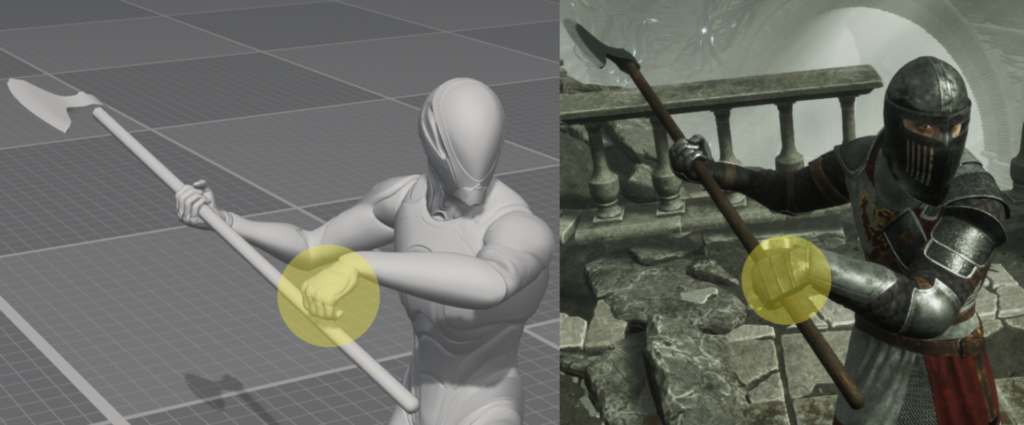
Two-handed grip: rough placement in Cascadeur, exact grip via Two Bone IK in Unreal Engine.
Tip: Before you start an animation, know which parts of it Unreal will actually use. Whatever gets overridden by an upper-body slot or by IK doesn’t need your attention.
Getting the animations into Unreal Engine 5
I created all animations directly on the UE5 Mannequin skeleton and exported them as FBX. No retargeting, no conversion step: export, import, done.
I also tried the new Unreal Engine Live Link. It was very easy to set up and worked well. For my project, though, I think it’s most useful for animations that interact with the environment, for example a character walking around an obstacle that only exists in the Unreal project. My animations were mostly self-contained, so the Cascadeur viewport was enough, and I usually only checked an animation in Unreal once it was almost finished. That’s not a knock on the feature. It just shows that every workflow is different: use the tools that fit your use case, not every tool because it’s there.
The same attack in Cascadeur (left) and in Unreal Engine 5 (right).
To balance believable movement with responsive gameplay, every attack in Unreal is split into three phases, marked directly on the montage timeline:
- Windup: The attacker commits to a direction. This phase has to be readable, because it’s the moment the opponent decides how to block. It’s also where the attacker can still feint into another direction.
- Release: The frames that can actually deal damage. Short and fast.
- Recovery: The return to the weapon stance. Because every attack ends in its stance, the next attack can be chained in from here.
That’s the whole balancing act: an animation is allowed to be weighty, as long as the player can read it and act during it.
A few things I deliberately solved in Unreal instead of animating them:
- Blocked attacks play backwards. When a swing is blocked or hits a wall, the attack animation simply plays in reverse. I didn’t prepare anything for this in Cascadeur, and it still looks convincing. Zero extra work, my favorite kind of feature.
A blocked attack plays backwards, no extra animation needed.
- Hit reactions are physics-based (Physical Animation) instead of authored animations. They react to where the character was actually hit, and I didn’t need a separate hit animation for every direction.
- Attacks move the character forward without root motion, so the player stays in control while attacking. Dodges, on the other hand, use root motion, and that’s where the consistent pacing from the trajectories really paid off.
How the animation layers stack up
If I had made a separate animation for every combination (every weapon, both hands, standing, walking in every direction, crouching), I’d still be animating today. The trick is layering: every piece is made once, and Unreal combines them at runtime.
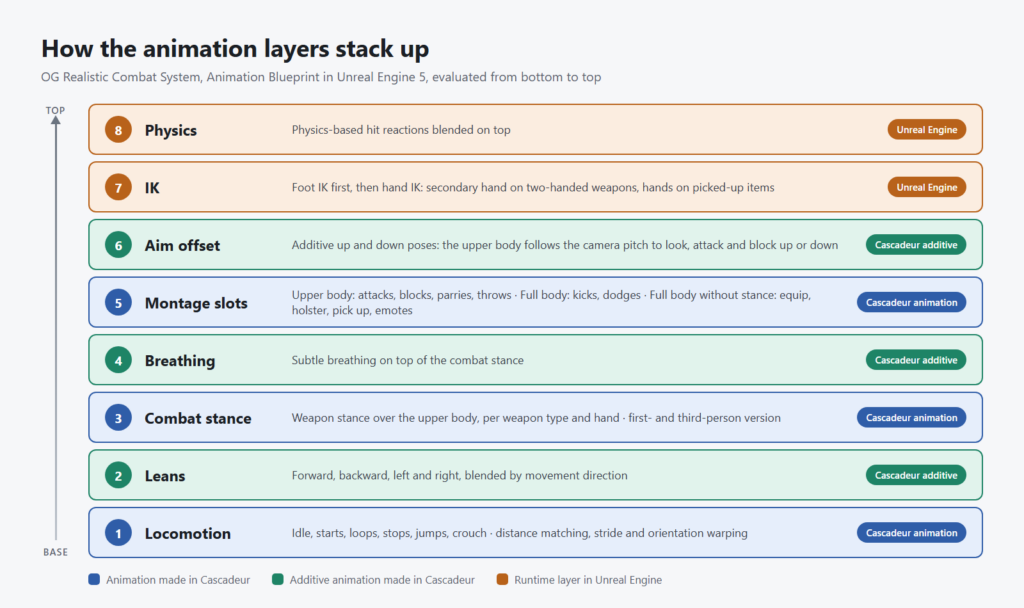
The animation layers in my Animation Blueprint, from locomotion at the bottom to physics on top.
Here’s my Animation Blueprint, from bottom to top:
- Locomotion. A state machine for idle, starts, loops, stops, jumping and crouching. Distance matching lands starts and stops exactly where the character stops, stride warping adapts the step length to the actual speed, and orientation warping turns the legs toward the movement direction. That covers the diagonals between my four movement directions, while the upper body keeps facing the camera.
- Leans. Four additive lean animations (forward, backward, left and right) made in Cascadeur and blended by movement direction. They give direction changes weight and are switched off while crouching.
- Combat stance. The weapon stance is layered over the upper body, per weapon type and hand. It’s the only place where first and third person differ: each stance has a first- and a third-person version, blended when switching the camera. The stance partially overrides the leans on purpose, so they only come through subtly. Two-handed weapons in first person also get a small additive bounce synced to the footsteps.
- Breathing. A subtle breathing animation is added on top of the combat stance, so the character never looks frozen, even when standing still.
- Montage slots. Actions play on top in separate slots. Attacks, blocks, parries and throws only affect the upper body, so the legs keep walking. Kicks and dodges take over the full body, while equipping, holstering, picking up and emotes take the full body without the weapon stance. Inertialization smooths every transition.
- Aim offset. An additive aim offset made in Cascadeur. I only use its up and down poses, since the character always faces the view direction anyway. That way, the upper body follows the camera’s pitch, and the character looks, attacks and blocks up or down with the camera.
- IK. Foot IK keeps the feet on uneven ground. Hand IK places the secondary hand on two-handed weapons and the hand on items being picked up. It has to run after foot IK, because foot IK lowers the pelvis and moves the arms with it.
- Physics. Finally, the physics-based hit reactions are blended on top.
The payoff: an attack only has to be animated once per use case, and it automatically works while standing, walking in any direction or crouching.
One attack animation, played while standing, walking and crouching.
Tip: Before you animate a new variation, ask yourself whether it could be a layer instead. Most combinations don’t need their own animation.
One animation set, two cameras: the first-person dilemma
Using one animation set for both perspectives was a deliberate choice. As far as I know, Chivalry 2 uses separate animation sets for first and third person, including locomotion. For a big studio, that’s doable. For a solo developer, it would have doubled a huge part of the work, so I needed a more efficient alternative. Most of it could be solved with careful animation. One thing couldn’t: the first-person camera.
One animation, two perspectives: first and third person.
For true first person, the camera has to follow the head perfectly, so I attached the spring arm with the camera to the head bone. The problem: now every head movement in an animation moved the camera too. In heavier animations, that was simply too much movement, and a free ticket to motion sickness.
The obvious alternatives didn’t work either:
- Regular camera lag on the spring arm made the camera trail behind the head instead of following it.
- Not attaching the camera to the head, but placing it by position or relative to another bone, made it much harder to keep the camera where the eyes are. And whatever bone I picked, I’d have to make sure it doesn’t move too much in any animation, which is the same problem in a different place.
- Separate first-person animations, as mentioned, were not an option.
After a lot of testing, I found a setup that works independently of how much the head moves in an animation:
- Attach the spring arm to the head bone and set its arm length to 0.
- Enable camera lag with the slowest possible lag speed. In my case, that’s 0.01. Smaller values made no visible difference.
- Set the camera lag max distance to 5 (Unreal units, so 5 cm).
The last step is the crucial one. With the slow lag speed alone, the camera just trailed behind. The max distance limits how far the camera can fall behind the head: it’s small enough that the camera never visibly lags, but large enough to give the lag room to absorb strong head movements. In practice, this works like a small dead zone around the head. Small head movements are filtered out completely, and larger ones only move the camera as far as needed. When switching to third person, these values are simply blended back to regular third-person settings.
First-person camera during a heavy attack: camera lag speed 20 without max distance (left) vs. the lag setup with max distance 5 (right).
The best part: it’s independent of the animations. I didn’t have to keep the head artificially stiff in Cascadeur just for the first-person view.
Tip: Camera lag max distance turns lag into a dead zone. Combined with a very low lag speed, the camera absorbs head motion without ever visibly trailing behind.
The hardest part: “unbreakable” locomotion
Surprisingly, the attacks weren’t the hardest part. Locomotion was. Some locomotion animations took me days each, all of them together took weeks, and I still dream about them. Not the good kind of dreams.
My goal was locomotion that feels “unbreakable”: no jaggy, laggy or abrupt movements, not even when the player spams inputs. And trust me, players will spam inputs. Especially in PvP. To get there, the animations have to blend into each other seamlessly. And that’s not only about the end pose of one animation matching the start pose of the next. Acceleration matters just as much. If a start animation accelerates differently than the loop it blends into, you see a hitch, even when the poses match perfectly. Again, the trajectories in Cascadeur helped a lot here.
I also made sure the upper body doesn’t move too much in the movement cycles, which keeps the movement calm and readable. And it helped that the character always faces the camera’s view direction. That saved me from dealing with awkward turns in the animations.
Then there’s the Animation Blueprint. After the locomotion animations themselves, it cost me the most nerves, mostly because I had to learn quite a few things for it first. But once the layers from the previous section were in place, everything finally clicked together.
Tip: Match velocity, not just poses. Compare the trajectory at the end of a start animation with the beginning of the loop it blends into.
Locomotion under input spam: starts, stops and direction changes without hitches.
How I would approach a new project
If I started a new project tomorrow, this is how I’d approach it:
- Plan first. Write down every animation and group them by use case. Your list will shrink.
- Key the moments that matter, not every few frames. Start and end pose, then the checkpoints, then only fix what the interpolation doesn’t solve.
- Only move the controllers that define the pose. Let AutoPosing handle the rest, and use AutoPhysics sparingly.
- Reuse everything you can. A pose library and Mirror save a lot of time.
- Don’t polish what the engine overrides anyway, like hands that end up driven by IK or legs under an upper-body attack.
- Layer instead of multiplying animations. Most combinations don’t need their own animation.
- Match acceleration, not just poses, if you want transitions to feel smooth.
- Use the tools that fit your workflow. Cascadeur has a lot of great tools, but you don’t have to use every one of them just because it’s cool or convenient.
By the end, a new attack animation from scratch took me about two hours, including the setup in Unreal Engine. The first one took two full days, and mirrored variants only took a fraction of the time.
Wrapping up
I’m really happy with how the animations turned out, and as a solo developer, I honestly couldn’t have done this amount of animation work without Cascadeur. If you’d like to see the result in action, you can find the OG Realistic Combat System on Fab.
Thanks for reading! Now go write that animation list. 😉


